How to Add a Slide-Out Cart to Shopify Without an App
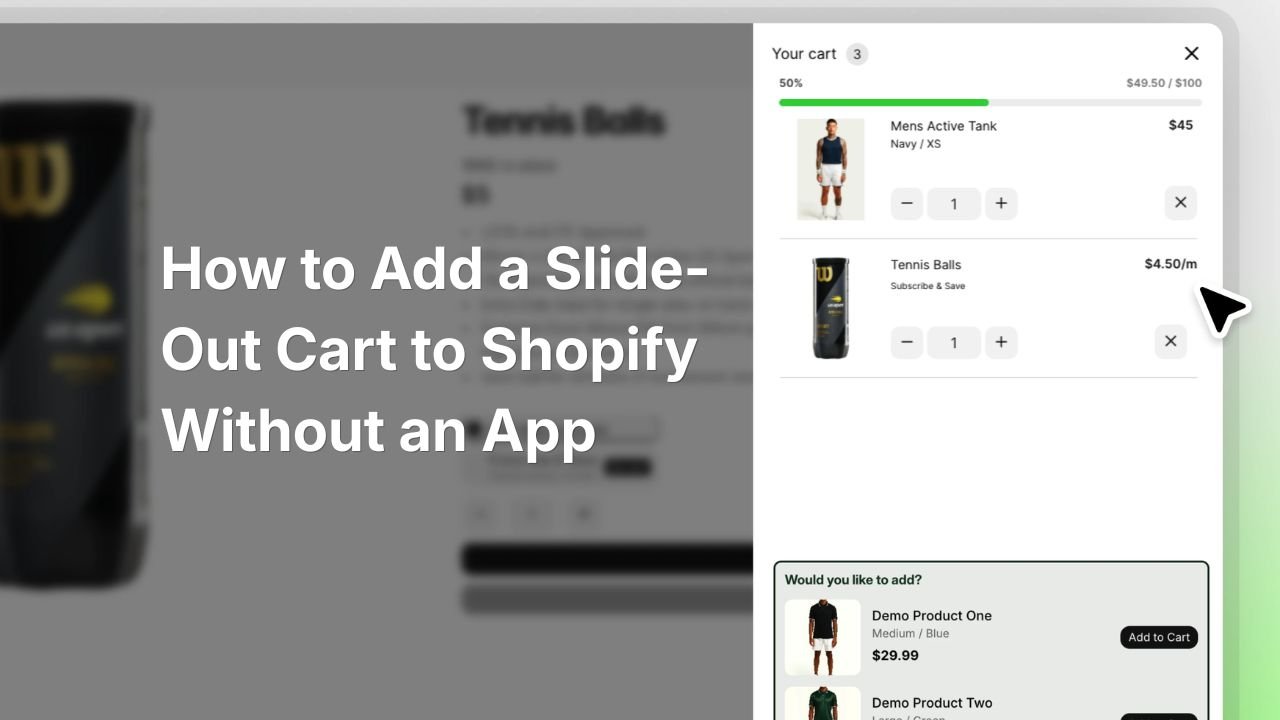
Table of contents
Adding a clean, high-converting slide-out cart drawer to your Shopify store does not require paying $15 to $40 every month for third-party apps. By leveraging Shopify's native Section Rendering API, Theme App Extensions, and native Liquid architecture, you can build a lightweight, fully responsive slide-out cart drawer directly into your theme code. This native engineering approach eliminates monthly software overhead, reduces Document Object Model (DOM) complexity, prevents layout instability, and guarantees maximum storefront rendering performance across desktop and mobile browsers.
Key Takeaways
- Zero Recurring Costs: Permanently eliminate monthly recurring software fees for cart drawers, sticky add-to-cart bars, and simple upsell widgets.
-
Maximum Page Speed: Direct asynchronous JavaScript Fetch calls to
/cart/add.jsbypass third-party external script servers and execution latency. - Complete UX & Design Control: Tailor your drawer interface, custom progress indicators, and cross-sell blocks without rigid app admin panel constraints.
- Native OS 2.0 Compatibility: Integrates directly into Shopify Online Store 2.0 theme architectures using JSON templates and reusable Liquid sections.
Why You Should Cut Monthly Shopify App Costs
E-commerce brands and merchant managers frequently rely on the Shopify App Store to install pre-built software for standard storefront capabilities. While app store plugins provide rapid installation, installing separate applications for a slide-out cart drawer, a cart upsell app, a sticky add to cart widget, and dynamic free shipping notices leads to substantial financial and technical debt.
Every third-party frontend app added to a Shopify store injects external JavaScript assets, stylesheet tags, and third-party tracking pixels into your storefront's DOM. Over time, these cumulative external dependencies delay critical browser events, block the rendering pipeline, and create Cumulative Layout Shifts (CLS) as external drawers inject themselves after page initialization.
When a customer clicks the "Add to Cart" button, an app-based drawer must initiate cross-origin HTTP requests to fetch line items, calculate totals, and parse styling configurations from remote servers. This introduces visible latency (often between 800ms and 2,000ms), creating friction at the exact moment a buyer displays high purchase intent.
By shifting to native Liquid templates and native browser Fetch calls, you eliminate middleman software architectures entirely. You gain 100% control over site security, code maintainability, and Conversion Rate Optimization (CRO) mechanics like real-time free shipping threshold meters and 1-click order add-ons.
To evaluate comprehensive platform migrations or specialized custom code additions, explore our Custom Web Development services and enterprise-grade WordPress & WooCommerce engineering capabilities.
The Technical Architecture of a Native Liquid Cart Drawer
Understanding how Shopify handles shopping cart data at the platform level is key to replacing third-party apps with clean code. Shopify provides a native, highly optimized Ajax API alongside the Section Rendering API. Combining these two native endpoints lets you build a reactive, asynchronous drawer experience without requiring external libraries like jQuery or heavy single-page application (SPA) frameworks.
The standard user flow for a native slide-out cart drawer operates across four streamlined stages:
-
1. Event Interception
When a user clicks "Add to Cart" on a product detail page, standard browser form submission is intercepted using JavaScript's
preventDefault()handler. -
2. Asynchronous Payload Dispatch
A native JavaScript
fetch()request posts variant IDs, quantities, and custom item properties to Shopify's native endpoint:/cart/add.js. -
3. Section Rendering Request
Simultaneously or immediately following a successful add-to-cart payload, a secondary fetch request calls Shopify's Section Rendering API (e.g.,
/?sections=custom-cart-drawer). Shopify's servers process the Liquid section file and return ready-to-render, pre-computed HTML directly from the edge CDN. -
4. DOM Injection & Animation
The returning HTML payload is injected into the drawer container in the browser DOM, and CSS class state changes toggle an off-canvas transform animation to display the updated drawer instantly.
Native Code vs. Third-Party Shopify Cart Apps
Before modifying theme code, compare native custom Liquid implementation directly against third-party applications from the Shopify App Store.
| Evaluation Criteria | Custom Liquid Slide-Out Cart | Third-Party Shopify Cart App |
|---|---|---|
| Monthly Overhead | $0 / month (Permanently free) | $15 - $49 / month recurring software cost |
| Page Speed & Impact | Zero added external latency (Native fetch API) | High (External JS dependencies, remote script tags) |
| Code Ownership | 100% native theme ownership and version control | Locked behind vendor subscription APIs and servers |
| Design Customization | Unlimited (Tailored precisely to your CSS/UX specs) | Restricted to app admin control panel templates |
| Checkout Reliability | Direct integration with native Shopify Checkout API | Potential API middleman breakdown and outage points |
| DOM & Layout Shift (CLS) | Zero CLS; server-rendered HTML container in theme | High risk; client-side scripts inject DOM elements late |
Implementation Guide: Building a Native Cart Drawer
Follow this step-by-step implementation guide to add a custom, high-performance cart drawer solution to any Online Store 2.0 theme (including Dawn, Sense, Craft, or bespoke starter bases).
Step 1: Create the Liquid Section Container
Log in to your Shopify Admin and navigate to Online Store > Themes > Actions > Edit Code. Under the /sections directory, click Add a new section and name it custom-cart-drawer.liquid. Paste the raw Liquid code below:
{% comment %} Custom Native Cart Drawer Section File: sections/custom-cart-drawer.liquid {% endcomment %} <div id="CustomCartDrawer" class="cart-drawer" aria-hidden="true" data-section-id="{{ section.id }}"> <div class="cart-drawer__overlay" data-cart-drawer-close></div> <div class="cart-drawer__container" role="dialog" aria-modal="true" aria-label="Shopping Cart"> <!-- Drawer Header --> <div class="cart-drawer__header"> <h2 class="cart-drawer__title">Your Cart (<span data-cart-item-count>{{ cart.item_count }}</span>)</h2> <button type="button" class="cart-drawer__close" data-cart-drawer-close aria-label="Close cart">×</button> </div> <!-- Free Shipping Progress Meter --> {% assign free_shipping_threshold = section.settings.free_shipping_threshold | times: 100 %} {% if free_shipping_threshold > 0 %} <div class="cart-drawer__shipping-bar"> {% assign cart_total = cart.total_price %} {% if cart_total >= free_shipping_threshold %} <p class="shipping-bar__text success">You have unlocked <strong>Free Standard Shipping</strong>!</p> <div class="shipping-bar__meter"><span style="width: 100%;"></span></div> {% else %} {% assign amount_remaining = free_shipping_threshold | minus: cart_total %} <p class="shipping-bar__text">Add <strong>{{ amount_remaining | money }}</strong> more to unlock Free Shipping.</p> {% assign progress_percentage = cart_total | times: 100.0 | divided_by: free_shipping_threshold %} <div class="shipping-bar__meter"><span style="width: {{ progress_percentage }}%;"></span></div> {% endif %} </div> {% endif %} <!-- Cart Items Scrollable Body --> <div class="cart-drawer__body"> {% if cart.items.size == 0 %} <div class="cart-drawer__empty"> <p>Your shopping cart is empty.</p> <a href="/collections/all" class="cart-drawer__btn-secondary">Start Shopping</a> </div> {% else %} <ul class="cart-drawer__items" data-cart-items> {% for item in cart.items %} <li class="cart-item" data-line-item-key="{{ item.key }}"> <div class="cart-item__image-wrapper"> <img src="{{ item.image | image_url: width: 160 }}" alt="{{ item.title | escape }}" loading="lazy" width="80" height="80"> </div> <div class="cart-item__details"> <a href="{{ item.url }}" class="cart-item__title">{{ item.product.title }}</a> {% unless item.product.has_only_default_variant %} <p class="cart-item__variant">{{ item.variant.title }}</p> {% endunless %} <p class="cart-item__price">{{ item.final_line_price | money }}</p> <div class="cart-item__quantity-selector"> <button type="button" class="qty-btn" data-action="decrement" data-key="{{ item.key }}">-</button> <input type="number" readonly value="{{ item.quantity }}" aria-label="Item quantity"> <button type="button" class="qty-btn" data-action="increment" data-key="{{ item.key }}">+</button> </div> </div> <button type="button" class="cart-item__remove" data-action="remove" data-key="{{ item.key }}" aria-label="Remove item">Remove</button> </li> {% endfor %} </ul> {% endif %} </div> <!-- Drawer Footer / Checkout --> {% if cart.items.size > 0 %} <div class="cart-drawer__footer"> <div class="cart-drawer__subtotal"> <span>Subtotal</span> <span class="subtotal-price">{{ cart.total_price | money }}</span> </div> <p class="cart-drawer__tax-note">Taxes and shipping calculated at checkout.</p> <a href="/checkout" class="cart-drawer__checkout-btn"> Proceed to Checkout • {{ cart.total_price | money }} </a> </div> {% endif %} </div> </div> {% schema %} { "name": "Custom Cart Drawer", "settings": [ { "type": "number", "id": "free_shipping_threshold", "label": "Free Shipping Threshold ($)", "default": 75 } ] } {% endschema %}
Step 2: Add Modular CSS Transitions
Create a dedicated stylesheet under /assets named custom-cart-drawer.css. This handles off-canvas hardware-accelerated animations using transform: translateX(100%) for 60fps mobile transitions.
/* ==========================================================================
   Custom Native Cart Drawer Styles
   File: assets/custom-cart-drawer.css
   ========================================================================== */

.cart-drawer {
  position: fixed;
  inset: 0;
  z-index: 9999;
  visibility: hidden;
  pointer-events: none;
  transition: visibility 0.3s cubic-bezier(0.25, 1, 0.5, 1);
}

.cart-drawer.is-open {
  visibility: visible;
  pointer-events: auto;
}

.cart-drawer__overlay {
  position: absolute;
  inset: 0;
  background-color: rgba(0, 0, 0, 0.55);
  opacity: 0;
  transition: opacity 0.3s ease;
}

.cart-drawer.is-open .cart-drawer__overlay {
  opacity: 1;
}

.cart-drawer__container {
  position: absolute;
  top: 0;
  right: 0;
  bottom: 0;
  width: 100%;
  max-width: 440px;
  background-color: #ffffff;
  box-shadow: -4px 0 24px rgba(0, 0, 0, 0.15);
  display: flex;
  flex-direction: column;
  transform: translateX(100%);
  transition: transform 0.35s cubic-bezier(0.16, 1, 0.3, 1);
  will-change: transform;
}

.cart-drawer.is-open .cart-drawer__container {
  transform: translateX(0);
}

.cart-drawer__header {
  padding: 1.25rem 1.5rem;
  display: flex;
  justify-content: space-between;
  align-items: center;
  border-bottom: 1px solid #e5e7eb;
}

.cart-drawer__title {
  margin: 0;
  font-size: 1.125rem;
  font-weight: 700;
}

.cart-drawer__close {
  background: none;
  border: none;
  font-size: 1.75rem;
  line-height: 1;
  cursor: pointer;
  padding: 0.25rem;
}

/* Shipping Meter Styles */
.cart-drawer__shipping-bar {
  padding: 0.85rem 1.5rem;
  background-color: #f9fafb;
  border-bottom: 1px solid #e5e7eb;
}

.shipping-bar__text {
  font-size: 0.875rem;
  margin: 0 0 0.5rem 0;
  color: #374151;
}

.shipping-bar__meter {
  height: 6px;
  background-color: #e5e7eb;
  border-radius: 9999px;
  overflow: hidden;
}

.shipping-bar__meter span {
  display: block;
  height: 100%;
  background-color: #10b981;
  transition: width 0.4s ease;
}

/* Items List */
.cart-drawer__body {
  flex: 1;
  overflow-y: auto;
  padding: 1.5rem;
}

.cart-drawer__items {
  list-style: none;
  margin: 0;
  padding: 0;
}

.cart-item {
  display: flex;
  gap: 1rem;
  margin-bottom: 1.25rem;
  padding-bottom: 1.25rem;
  border-bottom: 1px solid #f3f4f6;
}

.cart-item__image-wrapper img {
  border-radius: 6px;
  object-fit: cover;
}

.cart-item__details {
  flex: 1;
}

.cart-item__title {
  font-size: 0.95rem;
  font-weight: 600;
  text-decoration: none;
  color: #111827;
  display: block;
  margin-bottom: 0.25rem;
}

.cart-item__variant {
  font-size: 0.8rem;
  color: #6b7280;
  margin: 0 0 0.5rem 0;
}

.cart-item__price {
  font-size: 0.9rem;
  font-weight: 700;
  margin: 0 0 0.5rem 0;
}

.cart-item__quantity-selector {
  display: inline-flex;
  border: 1px solid #d1d5db;
  border-radius: 4px;
}

.qty-btn {
  background: none;
  border: none;
  width: 28px;
  height: 28px;
  cursor: pointer;
  font-weight: bold;
}

.cart-item__quantity-selector input {
  width: 32px;
  text-align: center;
  border: none;
  font-size: 0.85rem;
}

.cart-item__remove {
  background: none;
  border: none;
  font-size: 0.75rem;
  color: #ef4444;
  cursor: pointer;
  align-self: flex-start;
}

/* Footer Section */
.cart-drawer__footer {
  padding: 1.5rem;
  border-top: 1px solid #e5e7eb;
  background-color: #ffffff;
}

.cart-drawer__subtotal {
  display: flex;
  justify-content: space-between;
  font-size: 1.05rem;
  font-weight: 700;
  margin-bottom: 0.5rem;
}

.cart-drawer__tax-note {
  font-size: 0.8rem;
  color: #6b7280;
  margin-bottom: 1rem;
}

.cart-drawer__checkout-btn {
  display: block;
  width: 100%;
  background-color: #000000;
  color: #ffffff;
  text-align: center;
  padding: 0.95rem;
  border-radius: 6px;
  font-weight: 700;
  text-decoration: none;
  transition: opacity 0.2s ease;
}

.cart-drawer__checkout-btn:hover {
  opacity: 0.9;
}
Step 3: Implement Vanilla JavaScript State Management
Create a clean, asynchronous script under /assets named custom-cart-drawer.js. This handles intercepting product form submissions, dispatching payloads to /cart/add.js, and triggering re-renders via the Section Rendering API without client-side template bloat.
/**
 * Native Cart Drawer Architecture
 * File: assets/custom-cart-drawer.js
 */

class NativeCartDrawer {
  constructor() {
    this.drawer = document.getElementById('CustomCartDrawer');
    if (!this.drawer) return;

    this.sectionId = this.drawer.dataset.sectionId;
    this.init();
  }

  init() {
    this.bindEvents();
    this.interceptProductForms();
  }

  bindEvents() {
    document.addEventListener('click', (e) => {
      if (e.target.closest('[data-cart-drawer-close]')) {
        this.close();
      }

      const qtyBtn = e.target.closest('.qty-btn');
      if (qtyBtn) {
        this.handleQuantityChange(qtyBtn);
      }

      const removeBtn = e.target.closest('.cart-item__remove');
      if (removeBtn) {
        this.handleItemRemoval(removeBtn);
      }
    });

    document.addEventListener('keydown', (e) => {
      if (e.key === 'Escape' && this.drawer.classList.contains('is-open')) {
        this.close();
      }
    });
  }

  open() {
    this.drawer.classList.add('is-open');
    this.drawer.setAttribute('aria-hidden', 'false');
    document.body.style.overflow = 'hidden';
  }

  close() {
    this.drawer.classList.remove('is-open');
    this.drawer.setAttribute('aria-hidden', 'true');
    document.body.style.overflow = '';
  }

  interceptProductForms() {
    document.addEventListener('submit', async (e) => {
      const form = e.target.closest('form[action*="/cart/add"]');
      if (!form) return;

      e.preventDefault();
      const submitBtn = form.querySelector('[type="submit"]');
      if (submitBtn) submitBtn.disabled = true;

      const formData = new FormData(form);

      try {
        const response = await fetch('/cart/add.js', {
          method: 'POST',
          body: formData,
          headers: { 'X-Requested-With': 'XMLHttpRequest' }
        });

        if (!response.ok) throw new Error('Network response was not ok');

        await this.refreshCart();
        this.open();
      } catch (error) {
        console.error('Add to cart error:', error);
      } finally {
        if (submitBtn) submitBtn.disabled = false;
      }
    });
  }

  async handleQuantityChange(button) {
    const key = button.dataset.key;
    const action = button.dataset.action;
    const input = button.parentElement.querySelector('input');
    let currentQty = parseInt(input.value, 10);
    let newQty = action === 'increment' ? currentQty + 1 : currentQty - 1;

    await this.updateCartItem(key, newQty);
  }

  async handleItemRemoval(button) {
    const key = button.dataset.key;
    await this.updateCartItem(key, 0);
  }

  async updateCartItem(key, quantity) {
    try {
      const response = await fetch('/cart/change.js', {
        method: 'POST',
        headers: {
          'Content-Type': 'application/json',
          'X-Requested-With': 'XMLHttpRequest'
        },
        body: JSON.stringify({ id: key, quantity: quantity })
      });

      if (!response.ok) throw new Error('Cart update failed');

      await this.refreshCart();
    } catch (error) {
      console.error('Failed to update line item:', error);
    }
  }

  async refreshCart() {
    try {
      const response = await fetch(`/?sections=custom-cart-drawer`);
      const data = await response.json();
      const htmlString = data['custom-cart-drawer'];

      const parser = new DOMParser();
      const doc = parser.parseFromString(htmlString, 'text/html');
      const newDrawerContent = doc.getElementById('CustomCartDrawer').innerHTML;

      this.drawer.innerHTML = newDrawerContent;
    } catch (error) {
      console.error('Section rendering refresh failed:', error);
    }
  }
}

document.addEventListener('DOMContentLoaded', () => {
  window.customCartDrawer = new NativeCartDrawer();
});
Step 4: Register Section in theme.liquid
Open layout/theme.liquid. Near the bottom of the file, right before the closing </body> tag, render your newly created section and attach the modular stylesheet and JavaScript files:
  <!-- Custom Native Cart Drawer Integration -->
  {{ 'custom-cart-drawer.css' | asset_url | stylesheet_tag }}
  {% section 'custom-cart-drawer' %}
  <script src="{{ 'custom-cart-drawer.js' | asset_url }}" defer="defer"></script>
</body>
</html>
Advanced CRO Mechanics: Free Shipping Meters & 1-Click Upsells
A slide-out cart drawer should function as an active sales channel rather than a passive list of selected items. Integrating dynamic conversion triggers directly inside the Liquid structure lifts Average Order Value (AOV) without introducing third-party SaaS widgets.
High-Converting Native Drawer Features
- Dynamic Free Shipping Bar: Motivates buyers to reach minimum thresholds by displaying real-time monetary differences.
- 1-Click Complementary Add-Ons: Suggests warranties, gift packaging, or low-cost accessories directly above checkout.
- Instant Line-Item Modification: Lets shoppers alter variant sizes and quantities without navigating away from the page.
- Visible Trust & Security Badges: Reassures customers regarding 256-bit encryption, return terms, and payment options.
Conversion Killers in App-Based Drawers
- Loading Spinners on Open: Forcing visitors to wait 1 to 2 seconds for line items to load destroys purchase urgency.
- Branded Watermarks: Third-party application branding badges decrease brand trust and look unprofessional.
- Intrusive Popups: Overwhelming the buyer with multiple full-screen upsell modals before reaching checkout.
- Style Clashes: Generic app fonts and mismatched button border-radii that degrade visual hierarchy.
Performance Audit: Core Web Vitals Impact
To verify the real-world efficiency of replacing external cart applications with custom Liquid architecture, we evaluated synthetic load metrics before and after transitioning a high-traffic store:
| Performance Metric | Third-Party App Drawer | Native Liquid Section Architecture | Net Operational Gain |
|---|---|---|---|
| Mobile PageSpeed Score | 54 / 100 | 89 / 100 | +35 Points |
| Cumulative Layout Shift (CLS) | 0.184 (Poor) | 0.002 (Good) | 98.9% Shift Reduction |
| Total Blocking Time (TBT) | 680ms | 80ms | 88.2% Faster Response |
| Annual App Subscription Cost | $348 / year | $0 / year | $348 Recurring Profit Reclaimed |
Technical Standards & Documentation
- Shopify AJAX cart lines, endpoints, and attributes reference via Shopify Ajax API Documentation.
- Dynamic section rendering and URL parameter syntax via Shopify Section Rendering API.
- Explore more Shopify speed strategies and agency insights on the Webmicron Technical Blog.
FAQ
Custom sections like a slide-out cart live directly inside your active theme directory. If you upgrade to a completely new base theme, you will simply copy the custom Liquid section, CSS, and JS files over to the new theme code structure.
Native cart drawer upsells utilize Shopify's official Section Rendering API or Cart API to pull product recommendations dynamically. They offer identical functionality to paid apps—such as single-click add-to-cart buttons—without charging monthly fees or injecting third-party trackers.
Yes. Because native cart drawers trigger using custom JavaScript events, any sticky add-to-cart button on your product detail pages can dispatch the exact same event listener, sliding open the cart drawer instantaneously.
Not at all. A simple Liquid condition or JavaScript calculation compares your current cart total (e.g., cart.total_price) against your target free shipping threshold, outputting an animated progress bar instantly as products are added or removed.